How to Split a PDF into Multiple Files
Quick answer
Open Split PDF, upload the file, and type the pages you want as a range like 1-3,5 — or leave the field empty to split every page into its own file. A single extracted range comes back as one PDF, while splitting into individual pages returns a ZIP. Your original upload is not modified, only the copy the tool produces.
When splitting makes sense
Splitting is the inverse of merging: pulling one chapter out of a large report, separating a multi-invoice PDF into individual invoices, or extracting just the signed page from a longer contract. It's most useful when a single PDF has accumulated multiple unrelated documents that now need to travel separately.
Step 1: Upload and set the page range
Open Split PDF, upload the file, and type the pages you want as a range like 1-3,5 — or leave the field empty to split every page into its own file. The syntax accepts comma-separated ranges and single pages in any combination.
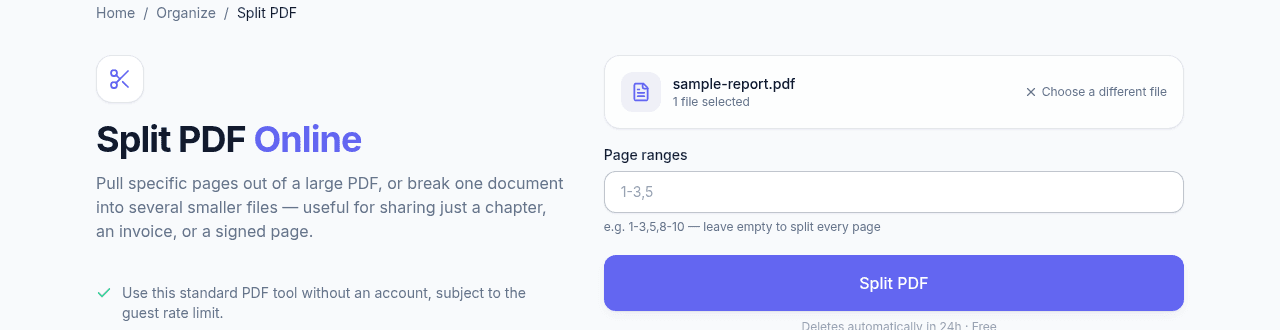
Step 2: Download the result
Run Split PDF and download the output — a single extracted range comes back as one PDF, while splitting into individual pages returns a ZIP of separate files. Everything is deleted from storage by a one-day expiry rule either way.
If you're extracting a range to send separately but also want to keep the rest of the document intact, keep your original upload; splitting doesn't modify the source file, only the copy it produces.
Frequently asked questions
What page-range syntax does it accept?
Comma-separated ranges and single pages in any combination, counting from one: 1-3,5,8-10 pulls pages one to three, page five, and pages eight to ten. Leaving the field empty splits every page into its own file instead.
Do I get one file back, or several?
It depends what you asked for. A single extracted range comes back as one PDF; splitting into individual pages returns a ZIP with one file per page, since a single download cannot be several PDFs at once.
Does splitting change the original file?
No. The tool produces new files and leaves your upload untouched, so extracting a range to send onwards does not cost you the complete document. Both are removed from storage by a one-day expiry rule either way.
How do I remove a few pages instead of extracting some?
Splitting works by naming what you want to keep, so invert it: list the ranges either side of the pages you are dropping. For anything more involved, Organize PDF deletes pages directly — you omit them from the new page order and save.