How to Crop a PDF Online (Trim Margins Without Losing Quality)
Quick answer
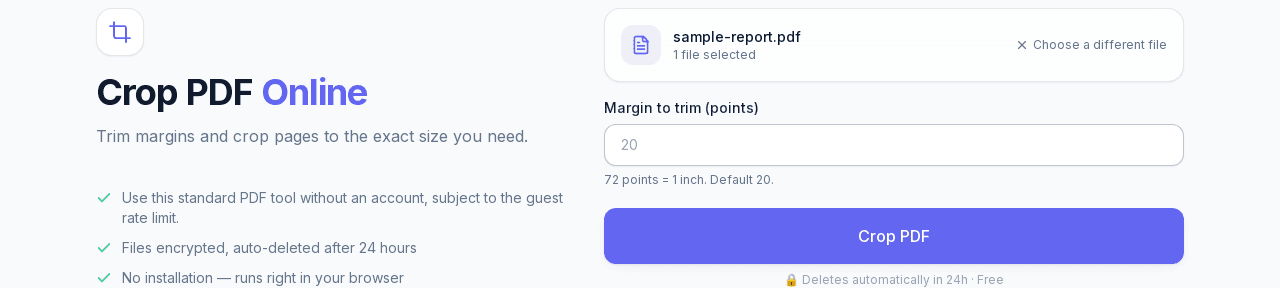
Open Crop PDF and set the margin to trim, in points, where 72 points is one inch. The default of 20 handles typical scanner borders; a book scan with wide margins might need 40 to 60. The same value applies to every page, and cropping adjusts the page's visible boundary rather than re-rendering it — so text stays selectable and nothing is recompressed.
Why crop a PDF instead of just ignoring the margins?
Wide, uneven, or scanner-added margins waste space when a document is printed, viewed on a phone, or embedded in a slide. A book page scanned with an inch of dead space on every side looks unprofessional and forces extra pinch-zooming on mobile. Cropping trims that margin uniformly across every page, so the content fills more of the visible area without touching the actual page content.
It's also the fix for PDFs exported with unwanted white borders from certain scanners or print-to-PDF drivers, where the page size itself is larger than the content actually printed on it.
Does cropping delete content, or just hide it?
A correct crop tool adjusts the page's visible boundary (its CropBox, the rectangle a viewer actually displays) — it doesn't touch or re-render the underlying content stream. Nothing is rasterized or recompressed, so text stays selectable and vector graphics stay crisp at any zoom level. If a tool's "crop" instead flattens the page into an image, you've lost searchability and quality for no reason — that's not how NexaPDF AI's Crop PDF works.
Step-by-step: cropping a PDF online
1. Open Crop PDF and upload the file you want to trim.
2. Set the margin to trim, in points (72 points = 1 inch). The default of 20 points works for typical light scanner borders; a book scan with wide margins might need 40–60.
3. Click Crop PDF. The same margin value is applied uniformly to every page in the document — there's no per-page adjustment, which keeps the whole document visually consistent.
4. Download the result and check a couple of pages at different points in the document, since a value that looks right on page 1 can clip differently if later pages weren't scanned at exactly the same size.
Picking the right margin value
Start conservative — 15 to 20 points removes typical whitespace without any risk of clipping real content near the edge. If the source pages have inconsistent margins (common with phone-scanned documents), err on the smaller side; over-cropping can shave off page numbers, footnotes, or content that sits closer to the edge on some pages than others.
If you're not sure how much margin exists, download the original and check it in any PDF viewer's ruler/ measurement tool first, or just try 20 and adjust from there — cropping is quick enough to re-run at a different value if the first pass wasn't enough.
What if the pages are different sizes to begin with?
Cropping trims a fixed margin from each page's existing boundary — it doesn't normalize different page sizes to match each other. If your document mixes page sizes (e.g. a few Letter pages inserted into an otherwise A4 document) and you need every page to end up visually the same size, that's a page-size/layout problem cropping alone won't solve — Organize PDF can at least help you reorder or remove the mismatched pages if dropping them is the simpler fix.