How to Convert a PDF to Word Online (Free, No Software)
Quick answer
Open PDF to Word, upload your file, and download the DOCX — it converts in the browser with nothing to install. Text and standard tables are rebuilt as real, editable Word content rather than pasted in as a picture of the page. If your PDF is a scan, run it through OCR first, or there will be no text to convert.
Step by step
- 1
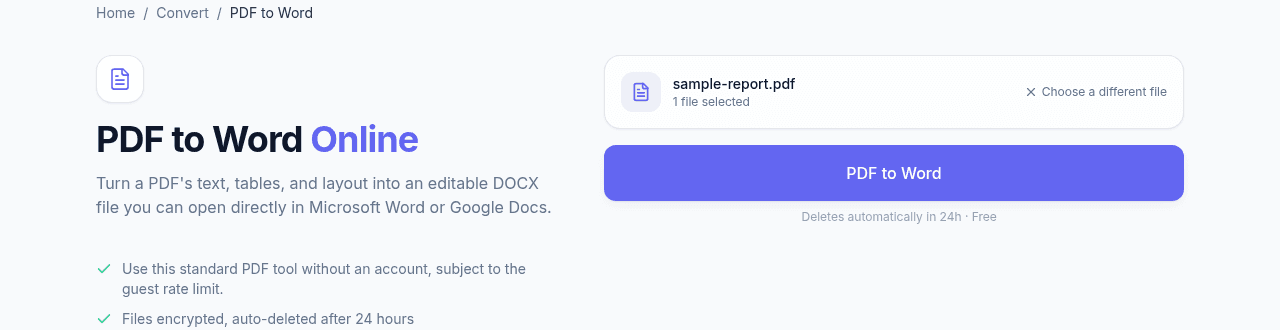
Upload the PDF
Open PDF to Word and drop the file in. The upload goes straight to encrypted storage over HTTPS, and both it and the result are removed by a one-day storage expiry rule.
- 2
Run the conversion
Processing happens in the cloud, so there is no software to install and it behaves the same on desktop and mobile. Text, tables and layout are rebuilt into DOCX structure rather than embedded as an image.
- 3
Download and check the formatting
Open the DOCX in Word or Google Docs. Body text and standard tables typically come through cleanly; multi-column pages and heavily designed tables are the ones that sometimes need small manual cleanup.
Why convert a PDF to Word at all?
A PDF is meant to look the same everywhere, which also makes it hard to edit. Converting to DOCX turns that fixed layout back into text, tables, and paragraphs you can rewrite directly in Microsoft Word or Google Docs — useful for revising a contract, updating an old report, or reusing content from a PDF someone sent you.
What survives the conversion, and what needs cleanup
Text, tables and layout are rebuilt into DOCX structure rather than pasted in as an image of the page, so the result is genuinely editable rather than a picture you can only look at. Body text and standard tables typically come through cleanly.
Complex layouts are where manual cleanup shows up: multi-column pages, unusual fonts that weren't embedded, and heavily designed tables with merged cells or nested headers. None of these fail outright — they land close and need nudging.
If the PDF is a scan, convert it in the other order
A scanned PDF is an image of a page, not text — so there is nothing for a converter to rebuild, and the DOCX comes back empty or nearly so. This is the single most common reason a conversion looks broken when it isn't.
Run the file through OCR PDF first to add a real, searchable text layer, then convert that result instead. Check the recognition on a page or two before converting: OCR errors carry straight through into the Word document, where they are much harder to spot.
Frequently asked questions
Will the formatting survive the conversion?
Body text and standard tables usually come through cleanly. Multi-column layouts, unusual fonts and heavily designed tables are the cases that need a little manual tidying in Word afterwards.
Why is my converted document empty?
The source PDF is almost certainly a scan — an image of a page with no underlying text. Nothing can convert text that was never there. Run the file through OCR PDF first to add a real text layer, then convert that result instead.
Do I need Microsoft Word installed?
No. The conversion runs entirely on our servers and gives you a standard DOCX file, which opens in Word, Google Docs, LibreOffice or Pages.
Is there a watermark on the converted file?
No. The output is a clean DOCX with nothing added to it.